Your BOM, in your AI assistant
Connect Claude, Cursor or VS Code to your real parts and BOMs. Search, price and build by asking. Free on every plan.
Ask for what you need
Your assistant works with your real parts, BOMs and suppliers, not a spreadsheet pasted into a chat.
“Here's my KiCad BOM export. Create the parts and build the assembly.”
Creates parts with numbers from your scheme and links them into an indented BOM.
“Price the main board at 100 and 1,000 units. Flag anything with low stock.”
Pulls live pricing and stock from your sourcing provider and rolls up the cost.
“Where is this capacitor used? Swap it for the 0603 version everywhere.”
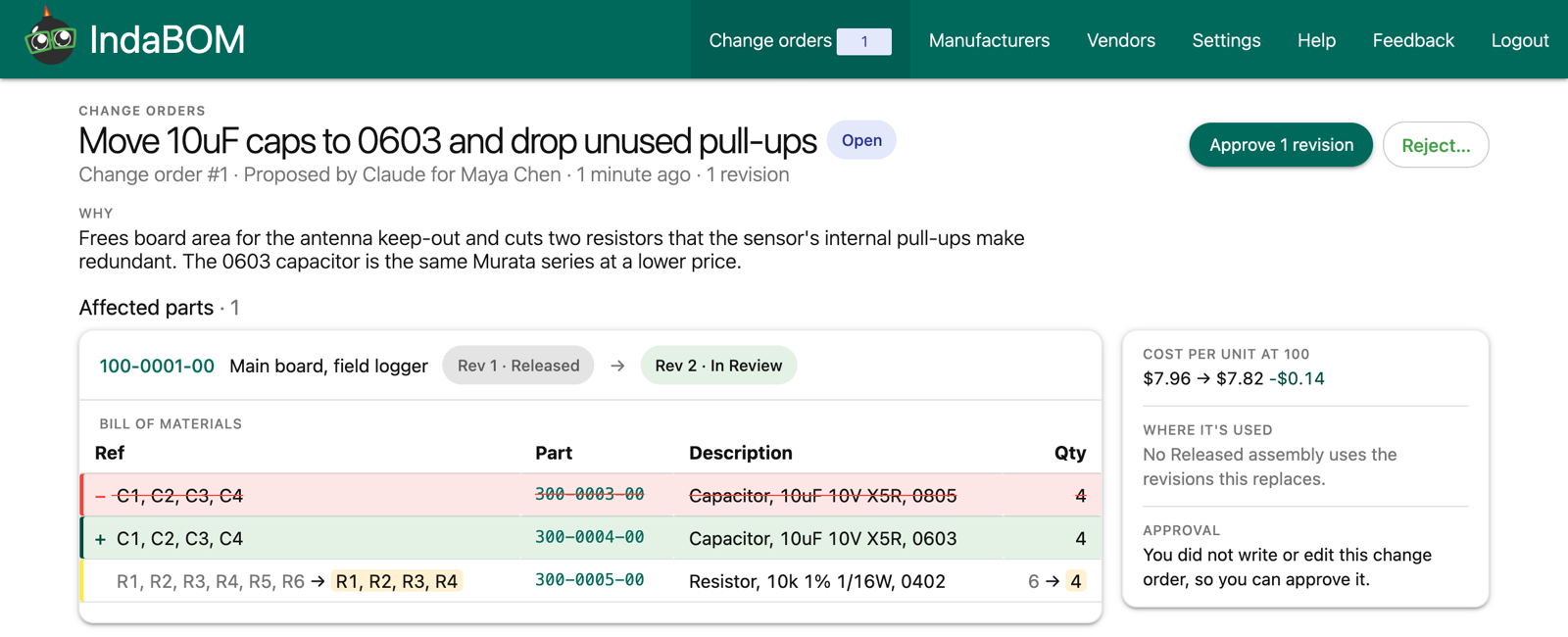
Finds every assembly that uses it and drafts a new revision of each. On Professional, they go into one change order for review.
“Which parts on this BOM have only one manufacturer? Suggest alternates.”
Lists the single-source parts and, once you agree, adds the alternate manufacturer parts.
“Export the enclosure BOM as a CSV for my contract manufacturer.”
Exports the BOM with quantities, manufacturer part numbers and sellers.
“Revise the battery holder with the new MPN and datasheet link.”
Starts the next revision. The released one stays untouched until the new one is released.
Your AI drafts the change. Your team approves it.
The assistant follows the same revision control as everyone else. On Professional, its changes to released parts go through change orders your team approves.
Acts as you
The assistant signs in as you and never has more access than your role.
You set the level
Read, Edit, or Edit and release. Change it any time without reconnecting.
Released parts are safe
A released revision is never edited. Changes go into the next revision, and on Professional, a change order.
Everything is recorded
Every edit lands in the part's history. Revoke access and the assistant stops at once.
Connect in a minute
Add IndaBOM to your assistant, then sign in to IndaBOM when it asks. There is no token to copy. You'll need a free IndaBOM account.
- In claude.ai or Claude Desktop, open Settings → Connectors and choose Add custom connector.
- Paste this address:
https://mcp.indabom.com/mcp - Select Connect and sign in to IndaBOM.
- Run:
claude mcp add --transport http indabom https://mcp.indabom.com/mcp - In Claude Code, run
/mcp, choose indabom and select Authenticate.
Cursor opens and asks you to confirm, then sign in to IndaBOM when it asks.
Add to CursorVS Code opens and asks you to confirm, then sign in to IndaBOM when it asks.
Add to VS CodeAny MCP client that supports sign-in can connect with this address:
https://mcp.indabom.com/mcp
For tokens and other setups, see Connect an AI assistant.
Questions
Is it really free?
Yes. Connecting an assistant, reading and editing your BOM are included on every plan, including Free. Professional adds teammates, roles, and change orders with approvals.
What is MCP?
The Model Context Protocol is an open standard that lets AI assistants use outside tools. IndaBOM runs an MCP server, so any assistant that supports MCP can work with your parts and BOMs.
Which assistants work?
Claude (claude.ai and Claude Desktop), Claude Code, Cursor and VS Code have step-by-step setup above. Other MCP clients that support sign-in can connect with the server address.
Can the assistant change a released part?
Not directly. It starts the part's next revision and edits that draft, and releasing it needs the Edit and release level. On Professional, the draft goes into a change order (ECO) that your team reviews and approves.
Can I self-host it?
Yes. The MCP server ships with django-bom, the open source project behind IndaBOM. See the install guide.